Should You Upgrade to macOS 26 Tahoe? What to Know Before You Install
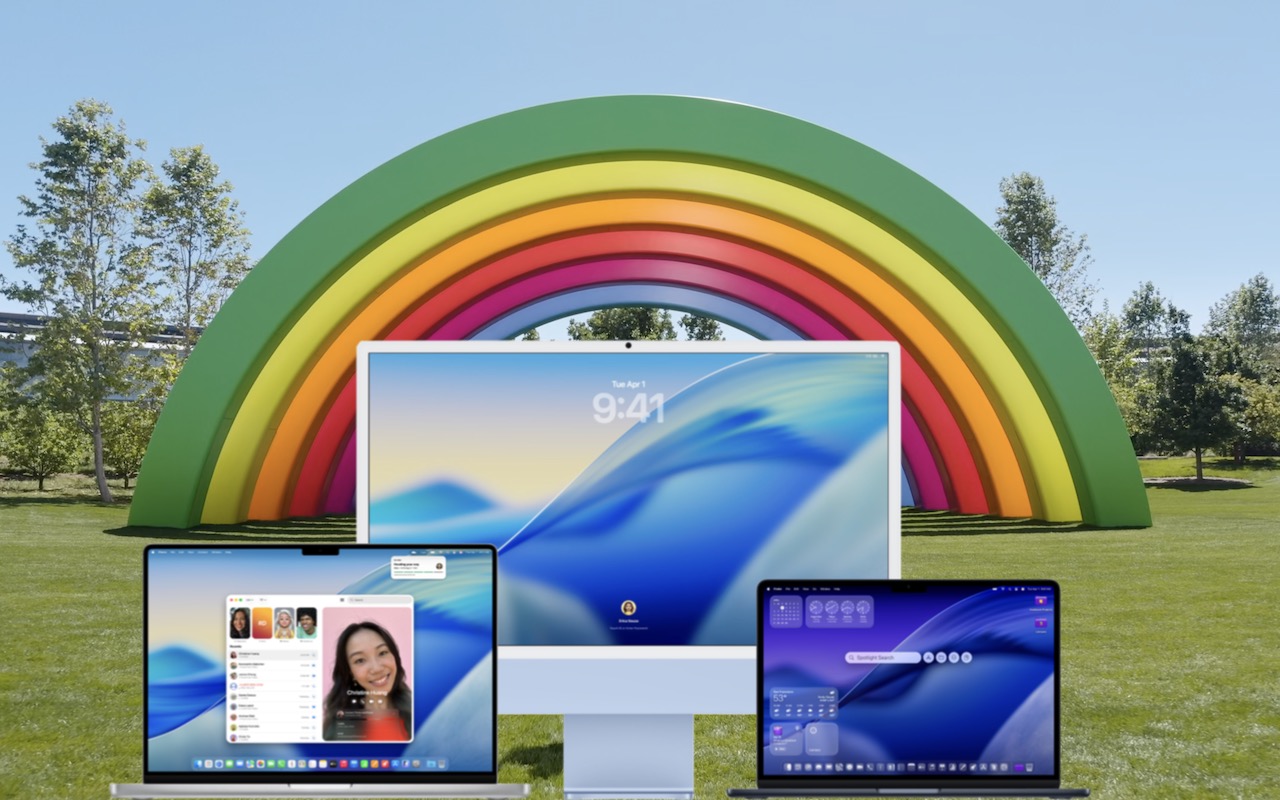
Apple has now refined macOS 26 Tahoe enough that upgrading makes sense for many users. While there’s no urgency to install it immediately, there are also few compelling reasons for most people to continue delaying.
Unlike last year’s macOS 15 Sequoia rollout, where major features arrived gradually, nearly all of Tahoe’s headline features shipped with version 26.0. That means what you see today is largely what you’ll get, aside from ongoing performance, security, and bug-fix updates.
If you’re using an Apple silicon Mac, Tahoe is now stable and polished enough to upgrade with confidence.
Is macOS 26 Tahoe Stable?
For most users, yes.
macOS 26 Tahoe runs well on modern Macs, particularly those with Apple silicon. While some users have noted higher baseline resource usage, minor battery concerns, and mixed reactions to the Liquid Glass interface, none of these issues are considered deal-breakers.
Apple will continue refining Tahoe throughout 2026 with regular updates, including expected releases in January, spring, and early summer. Security updates will also continue in between.
If you’re currently running macOS 14 Sonoma or macOS 15 Sequoia and staying up to date with security patches, you can safely delay the upgrade a bit longer. Older macOS versions no longer receive security updates and should not be used long term.
When You Might Want to Delay Upgrading
There are still a few valid reasons to wait:
You’re short on time
A macOS upgrade can take several hours, including post-upgrade cleanup and configuration. Plan to upgrade when downtime will not disrupt your work.
You rely on incompatible software
Most major applications are now Tahoe compatible, including Adobe Creative Cloud. However, if a critical app has known issues, it’s wise to wait until it’s fully supported.
What’s New in macOS 26 Tahoe?
Even if the Liquid Glass design isn’t your favorite change, Tahoe introduces several practical upgrades:
-
A fully customizable Control Center
-
Colored folders and badges for easier file organization
-
A more powerful Spotlight that now includes clipboard history
-
The Phone app on Mac, allowing calls through your nearby iPhone
-
Live Translation in Messages, FaceTime captions, and phone calls
These improvements focus on productivity, continuity, and usability rather than flashy redesigns.
Before You Upgrade to macOS 26 Tahoe
Before starting the upgrade, take care of these three essentials:
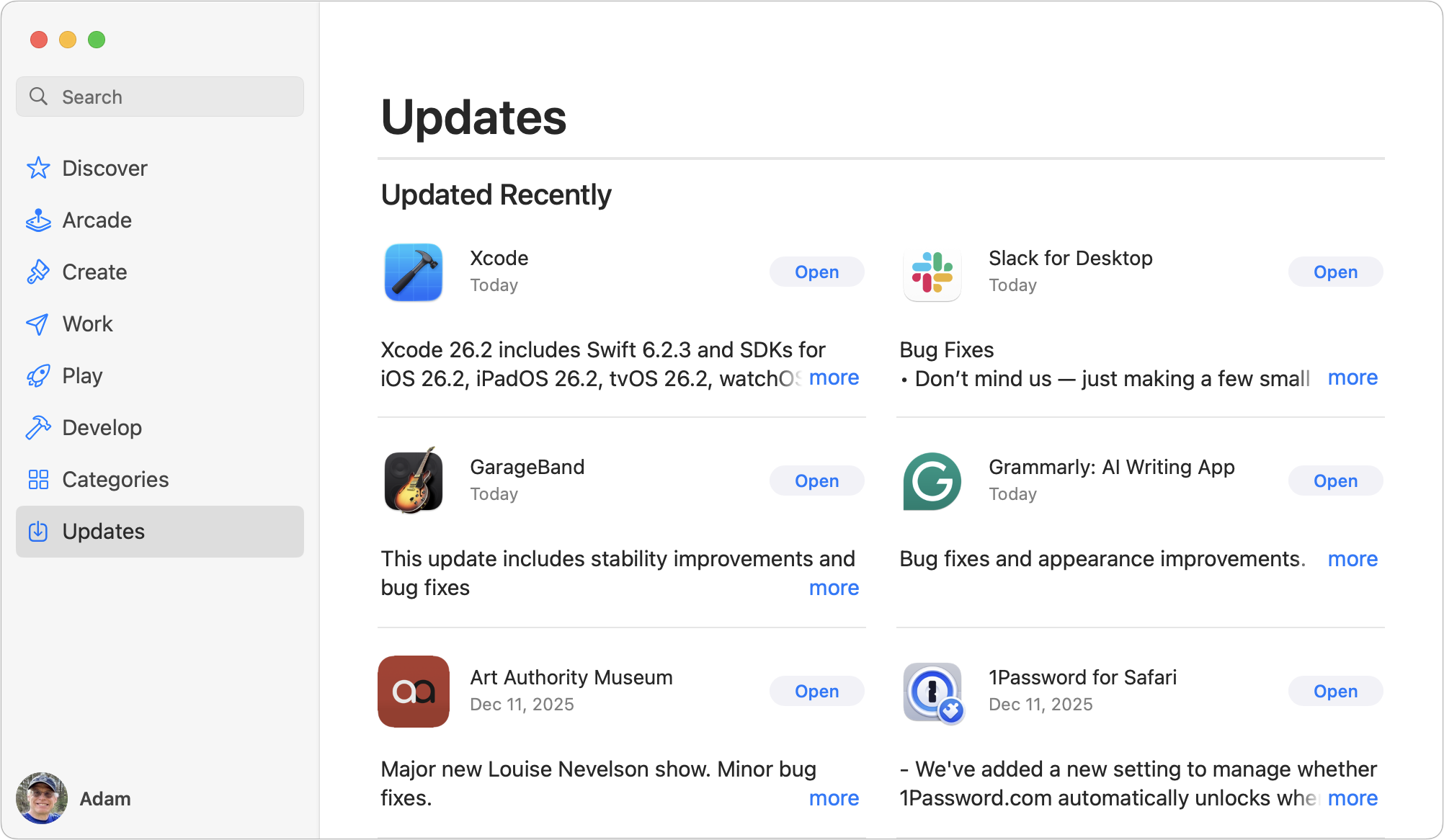
1. Update Your Apps
Ensure all applications are fully updated so you’re running Tahoe-compatible versions.
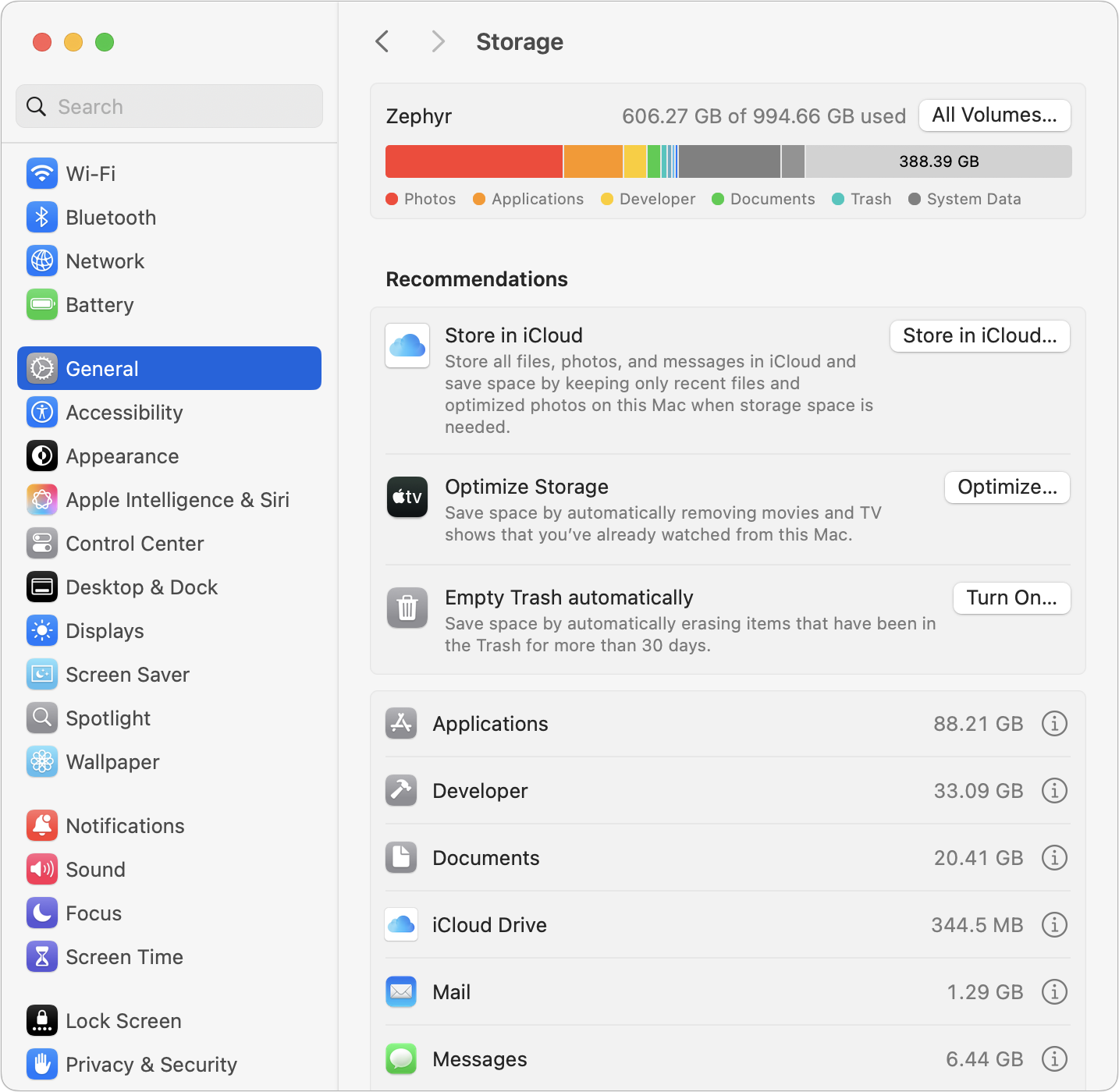
2. Free Up Disk Space
The upgrade process may require up to 25 GB of free space, with the installer alone taking up to 17 GB. We recommend having at least 50 GB available and maintaining 10 to 20 percent free disk space long term.
You can check storage under System Settings > General > Storage. Cloud storage services like iCloud Drive, Dropbox, Box, and Google Drive allow you to remove local files temporarily without deleting them.
3. Make a Full Backup
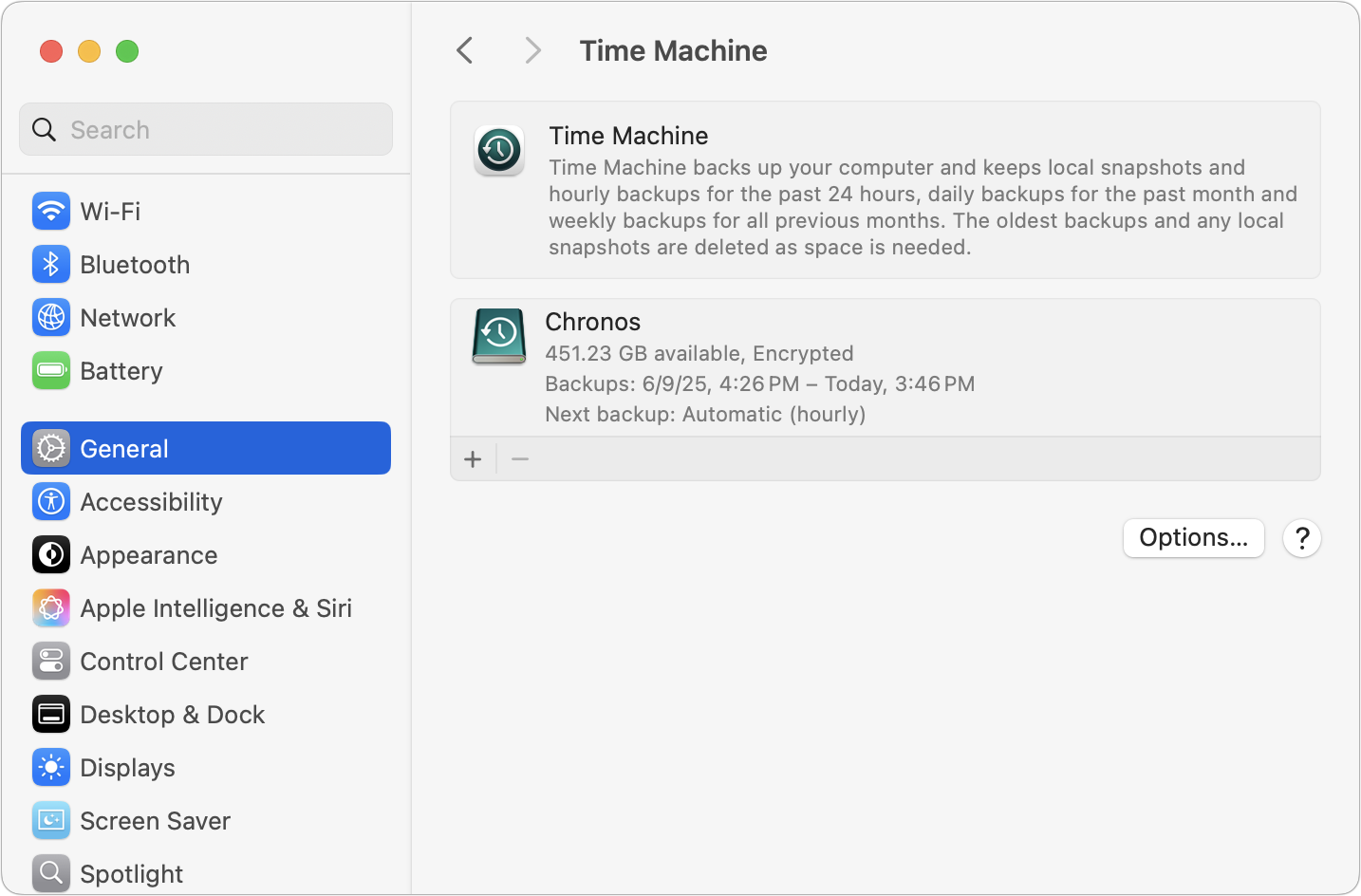
Never upgrade macOS without a current backup. Ideally, this includes:
-
A Time Machine backup
-
A local data-only copy
-
An offsite or cloud backup
This ensures you can recover quickly if something goes wrong.
For more help, see Joe Kissell’s ebook Take Control of Tahoe.
How to Upgrade to macOS 26 Tahoe
When you’re ready and won’t need your Mac for several hours:
-
Open System Settings
-
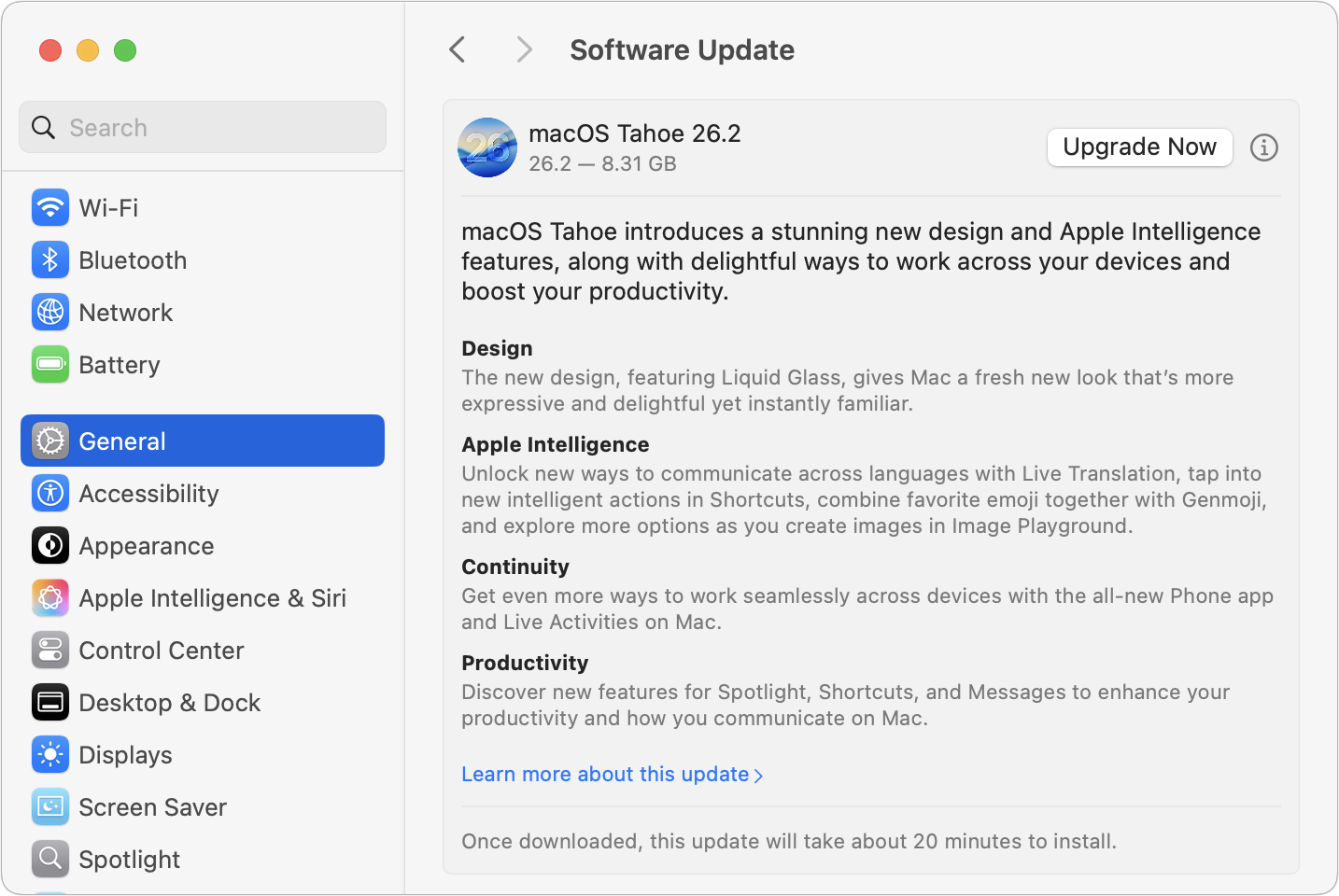
Go to General > Software Update
-
Click Upgrade Now and follow the prompts
The exact installation time varies, so avoid starting the process if you’re on a tight schedule.
After You Upgrade: What to Expect
Post-upgrade housekeeping is normal. You may notice:
-
Requests for Apple ID or Mac login passwords (like 1Password)
-
Apps asking for permissions again
-
Apple Watch unlock needing to be re-enabled
-
Google or other accounts requiring re-login
-
Websites prompting for sign-in again
These steps are expected and do not indicate a problem. Once complete, you’re ready to explore everything macOS 26 Tahoe has to offer.
Need Help With Your macOS Upgrade?
If you’d rather not handle the upgrade yourself or want to minimize downtime, Monge IT can help assess compatibility, handle backups, and manage the upgrade process safely. With the housekeeping done, it’s time to check out all the new features in Tahoe!
(Featured image by Apple)